For NovaStar LED walls · exports NovaLCT .scr
Wire the LED wall before the truck is loaded.
Enter the screen and cabinet size. The tool spreads the cabinets across the ports, draws the chains, cables and power, and writes the .scr file you load straight into NovaLCT.
- Runs in the browser, nothing to install
- 37 NovaStar processors and sending cards
- English and Serbian
- Ports
- 7
- Resolution
- 2688 × 1512
- Weight
- 1210 kg
- Draw
- 36 A
This isn't a recording. Change the size: it's the same engine as the full version.
Three steps to a screen that works first time
-
1
Size
Screen width and height, cabinet size and resolution, weight and draw from the datasheet. Everything changes with − / + buttons, so there's no typing, even on a phone.
-
2
Diagram
Cabinets are spread across the ports so that no port goes over capacity. The options are ranked best first, and you choose the chain direction and whether the cable comes from below or above.
-
3
.scr
One file with the exact mapping of every cabinet: sending card, port, place in the chain, X/Y. Load it into NovaLCT (Screen Configuration) and send it to the screen.
Every question the crew asks on site, on one diagram
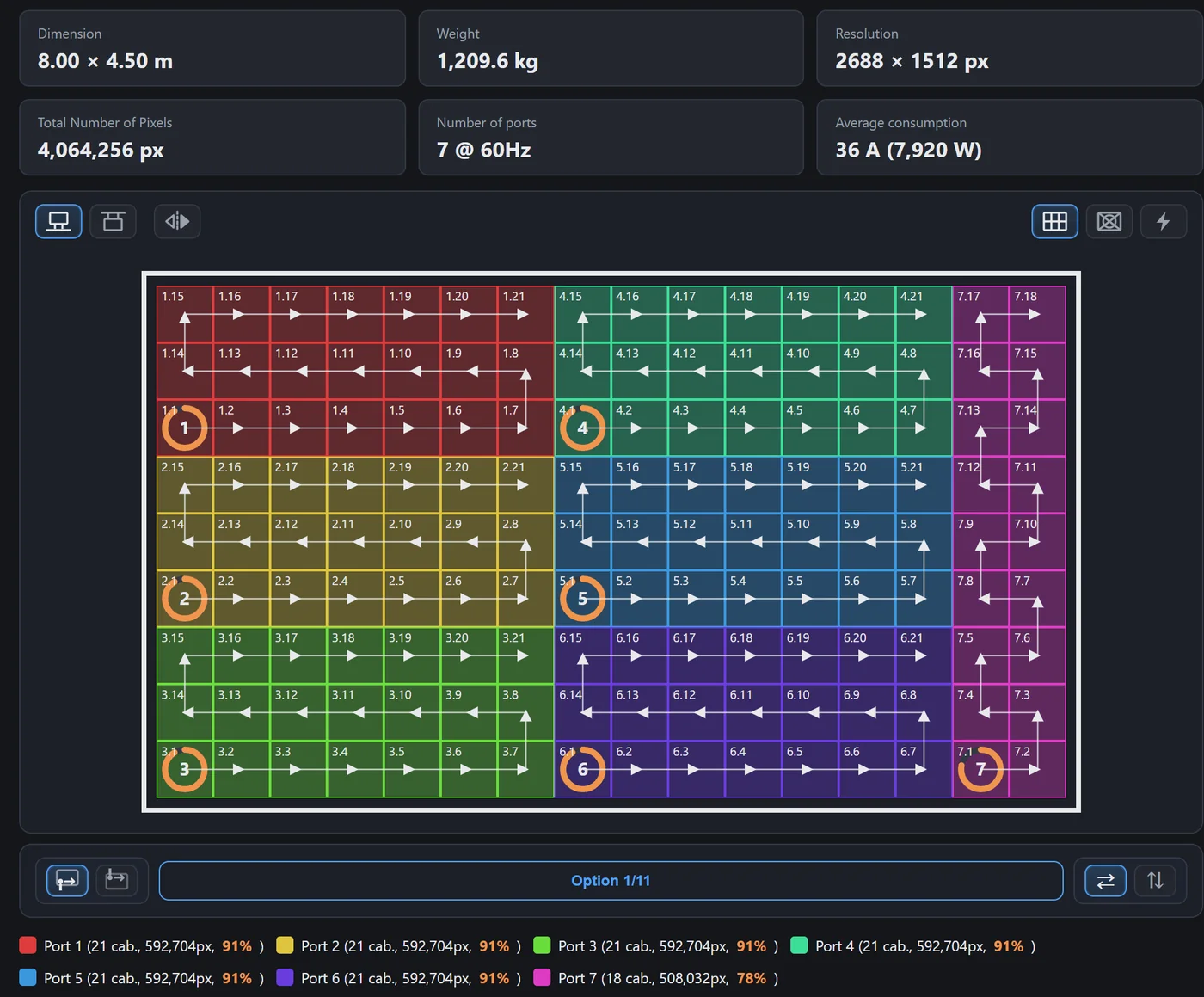
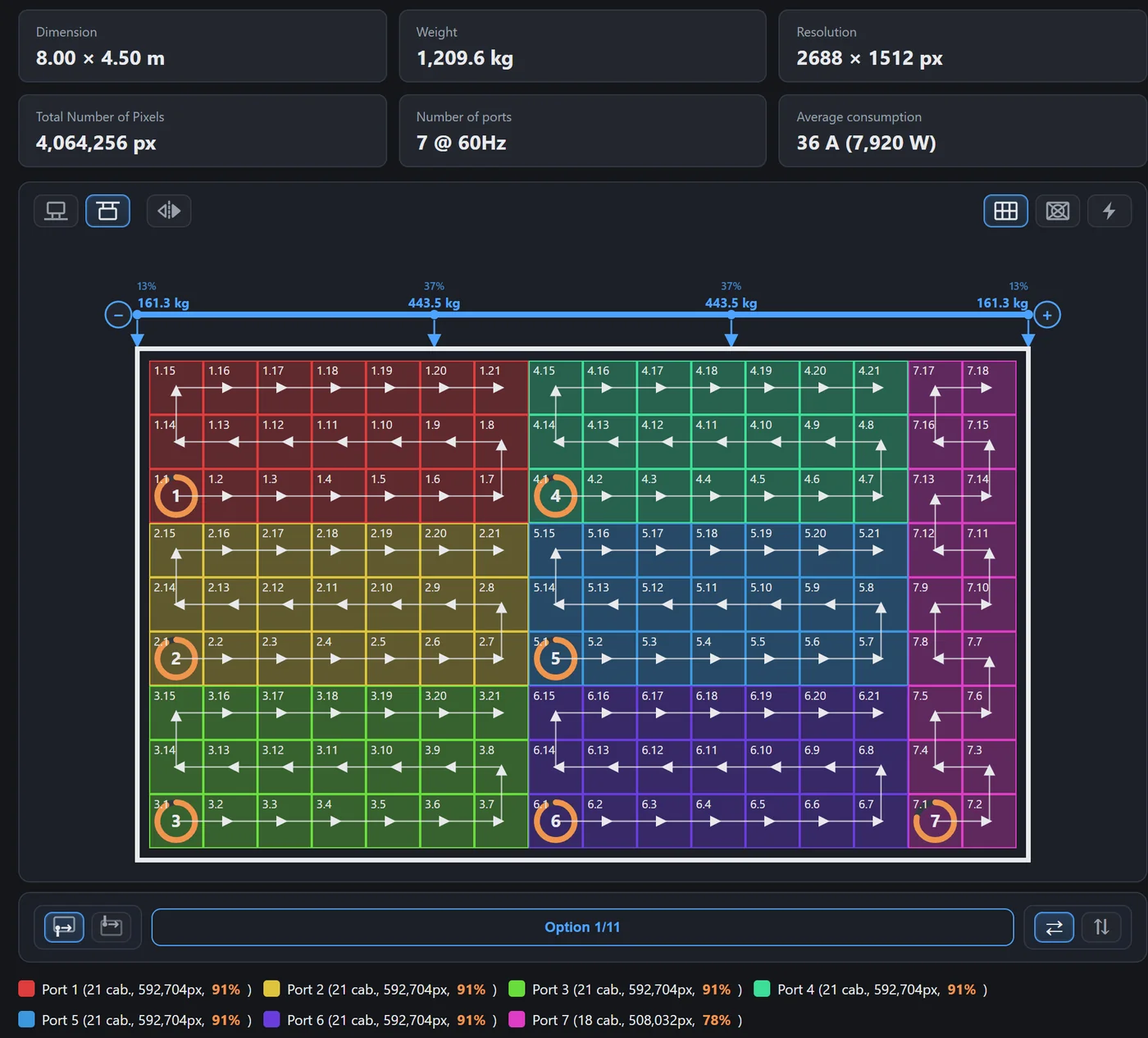
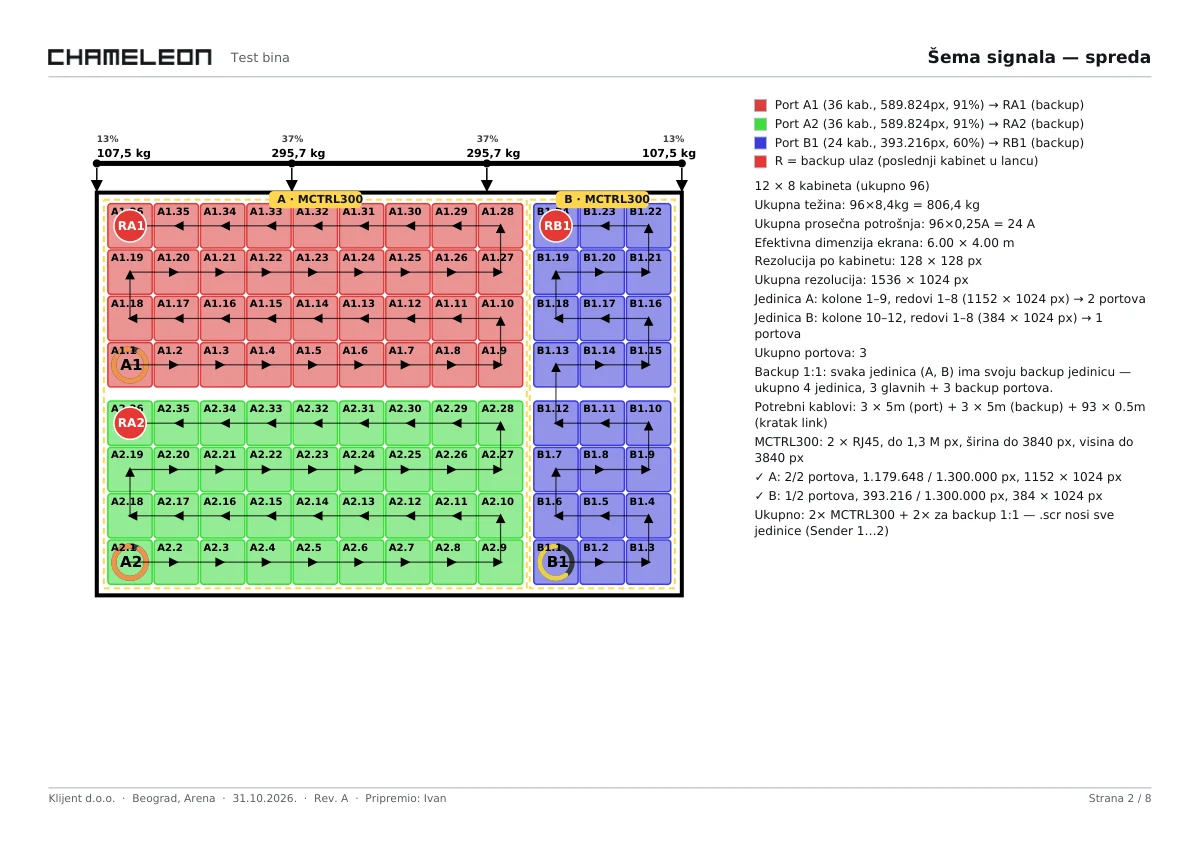
A colour per port, the order in every cabinet
The label 3.5 means port 3, fifth cabinet in the chain. Arrows show where the cable runs, and the ring on the first cabinet shows how loaded the port is.
- Cable list: 5 m per port, short and long links between cabinets
- Rear view, the way the cabling crew sees it
- Mixed rows: square cabinets on top when the height has a remainder
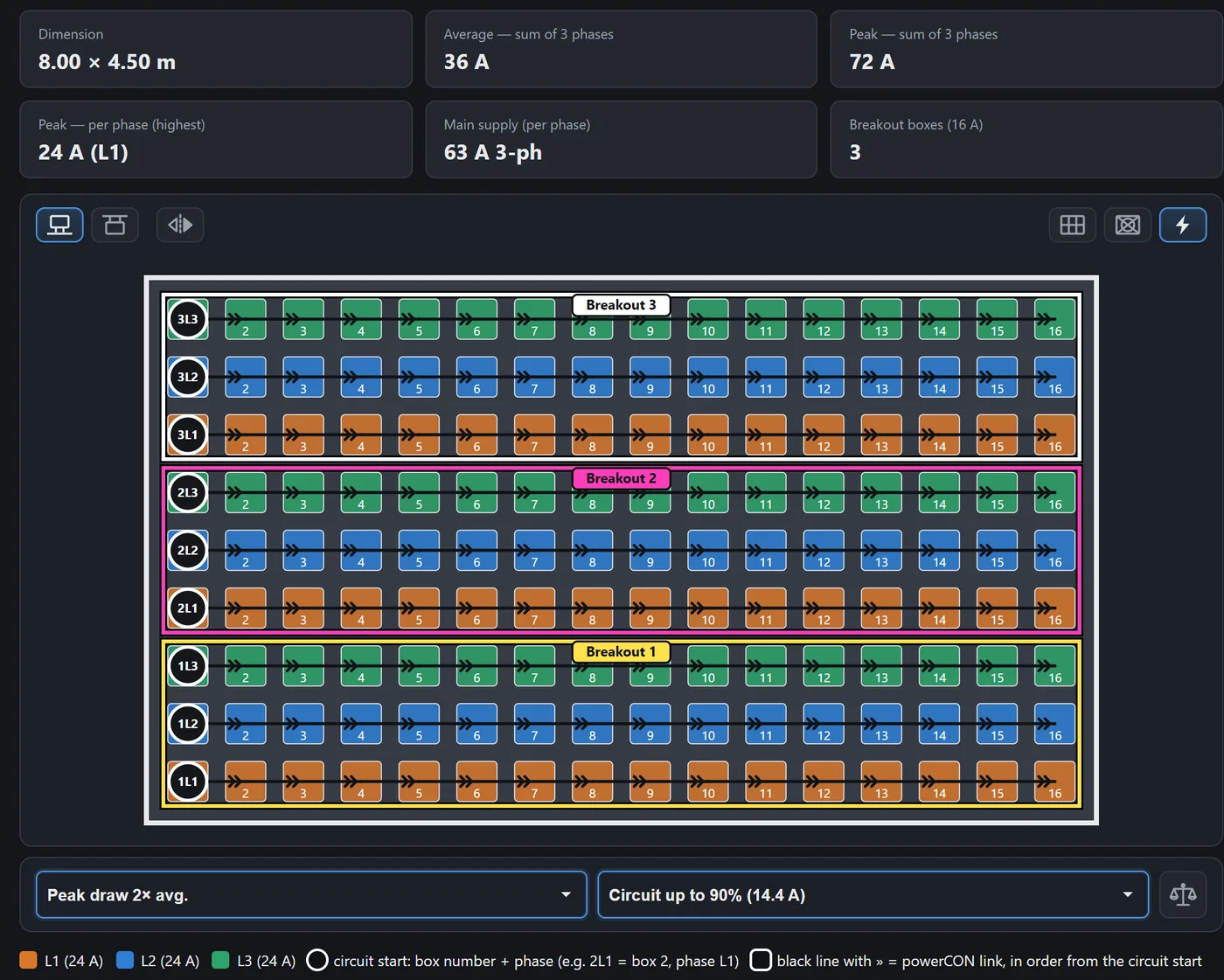
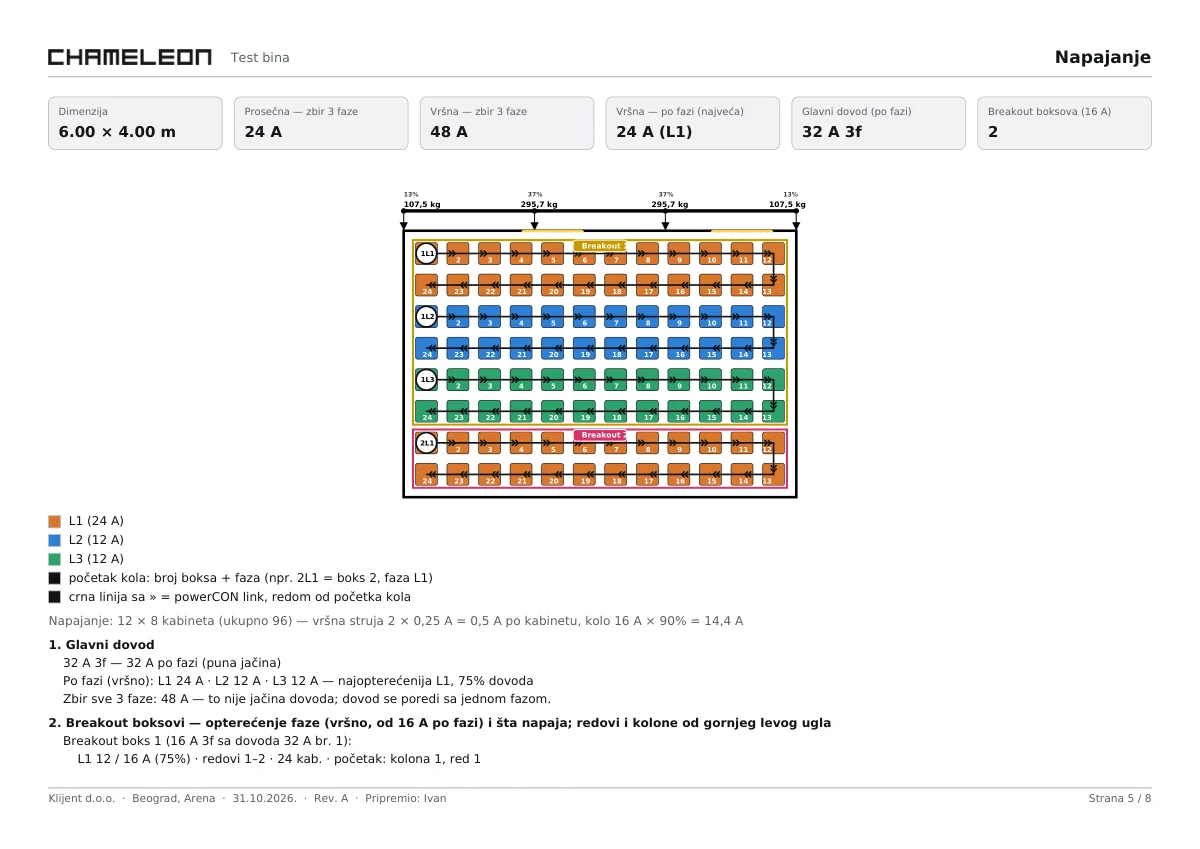
Power down to the last powerCON
Main supply, 16 A breakout boxes, phases L1–L3 and the circuits from cabinet to cabinet, with the peak current per phase.
- Choose the peak draw and the circuit load limit
- Balance the phases with one button
- Hung screen: circuits start from the top row
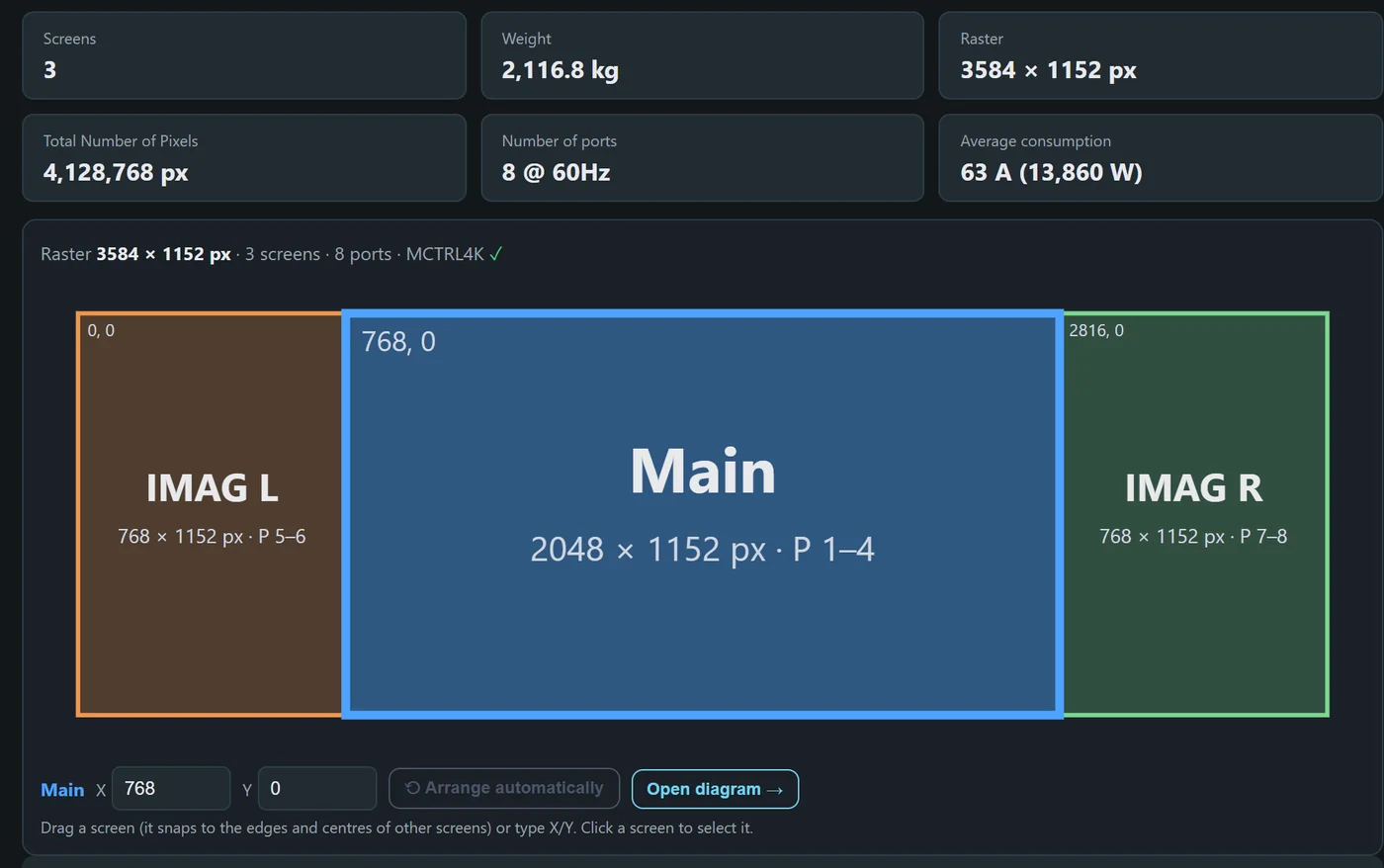
Main, IMAG L and IMAG R in one .scr file
Up to 16 screens on the same processor. Drag a screen in the raster or type its X/Y, and the ports continue in screen order.
- Every screen has its own colour, size and cabinets
- Processor check across all ports
- Resolume preset with a slice per screen
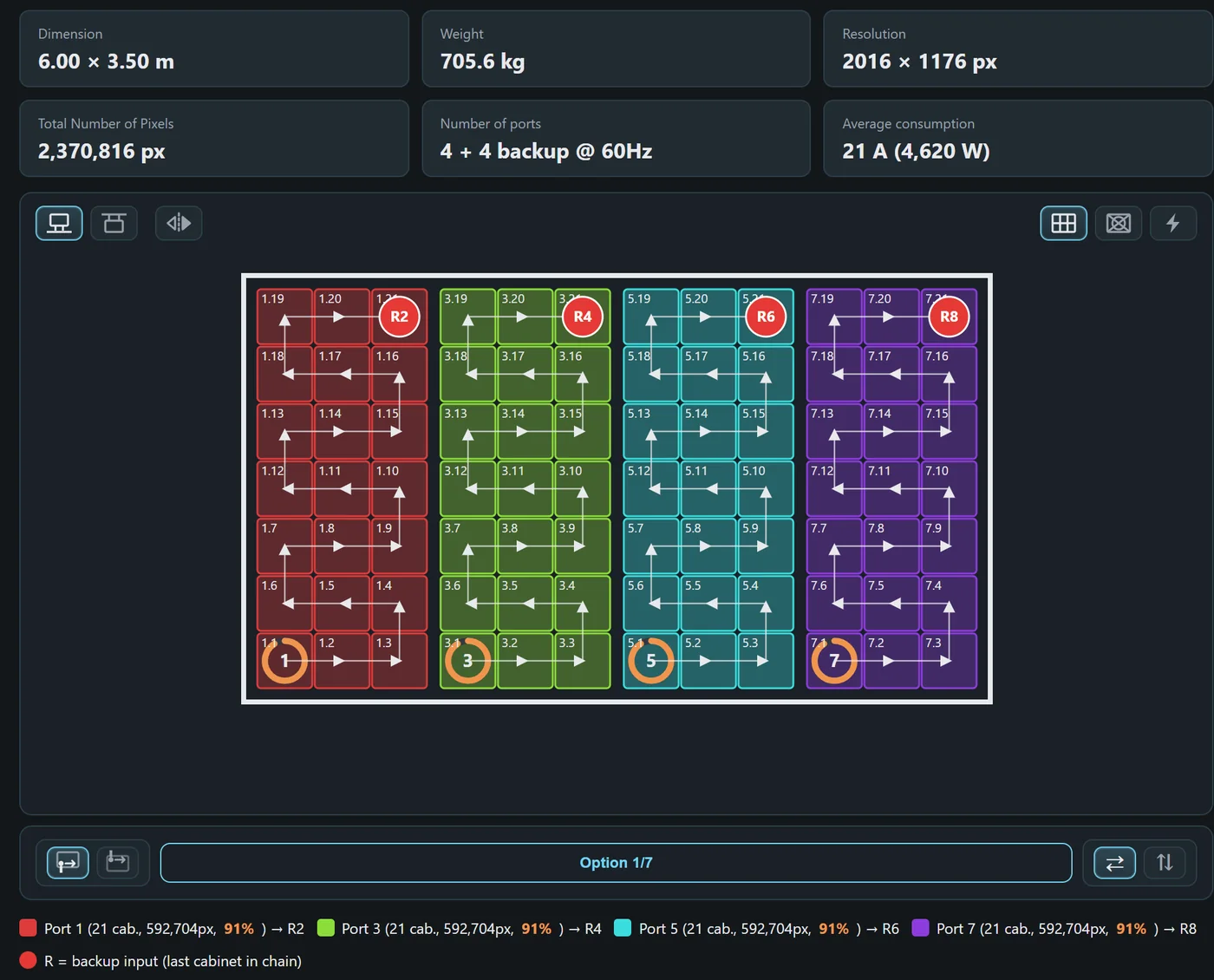
Redundancy you can see on the diagram
The backup cable goes to the last cabinet of the chain, marked R. If a cable breaks in the middle, the rest of the chain gets signal from the other end.
- 1:1 on a second unit, adjacent ports or halves
- Table of port pairs to enter in NovaLCT
- Split across several processors when one isn't enough
What each hang point carries
A beam above the screen with its hang points and the share of the weight on each, in percent and kilograms. It's calculated as a continuous beam, so the inner points carry more.
- From 2 to 20 points
- Total screen weight from the cabinet weight
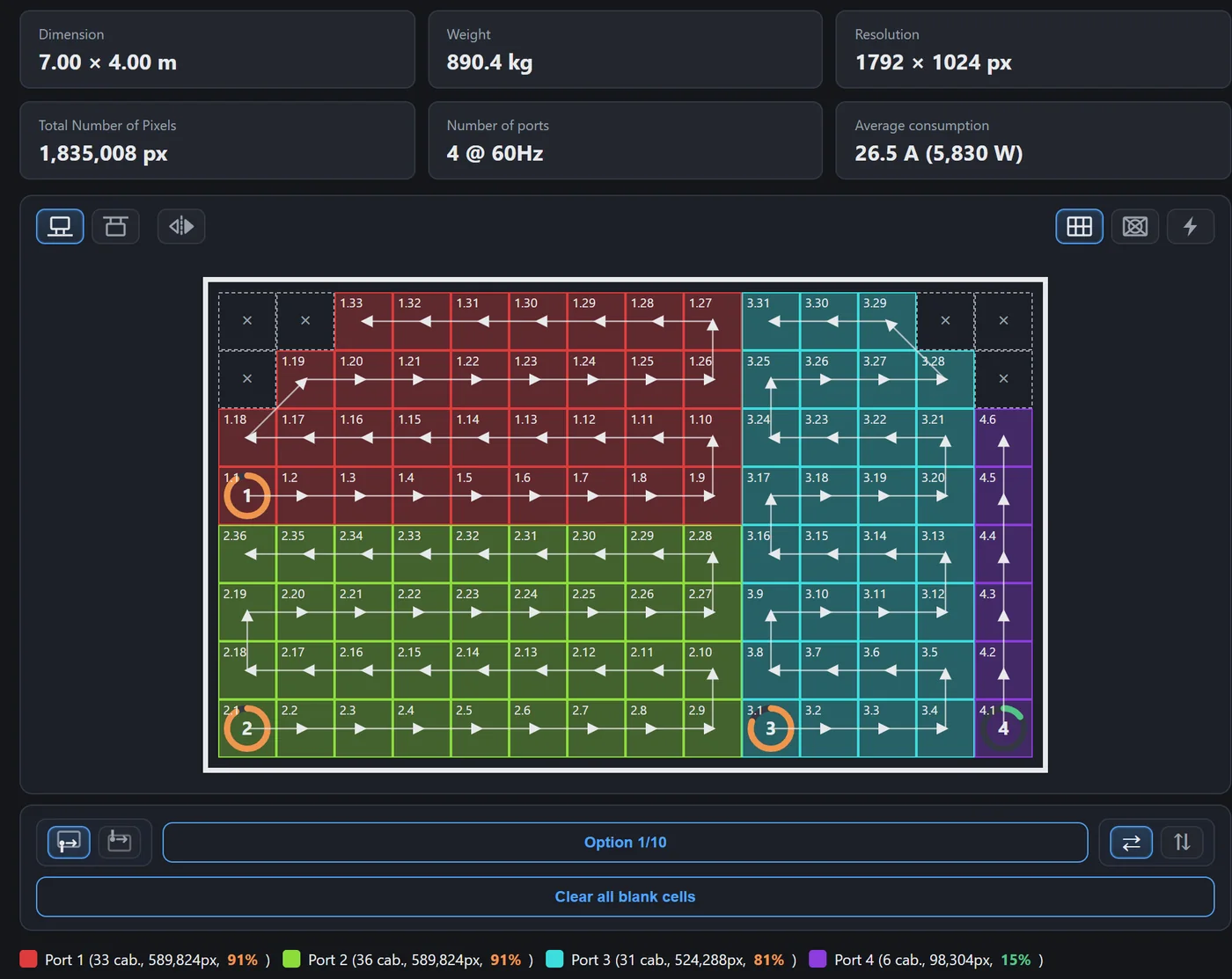
Screens that aren't a full rectangle
Click the cabinet that's missing and the chain is renumbered around it. That position is empty in the .scr file and drops out of the weight, draw and cable list.
- A warning when the chain has to jump a cabinet
- Jumps are counted at their real cable length
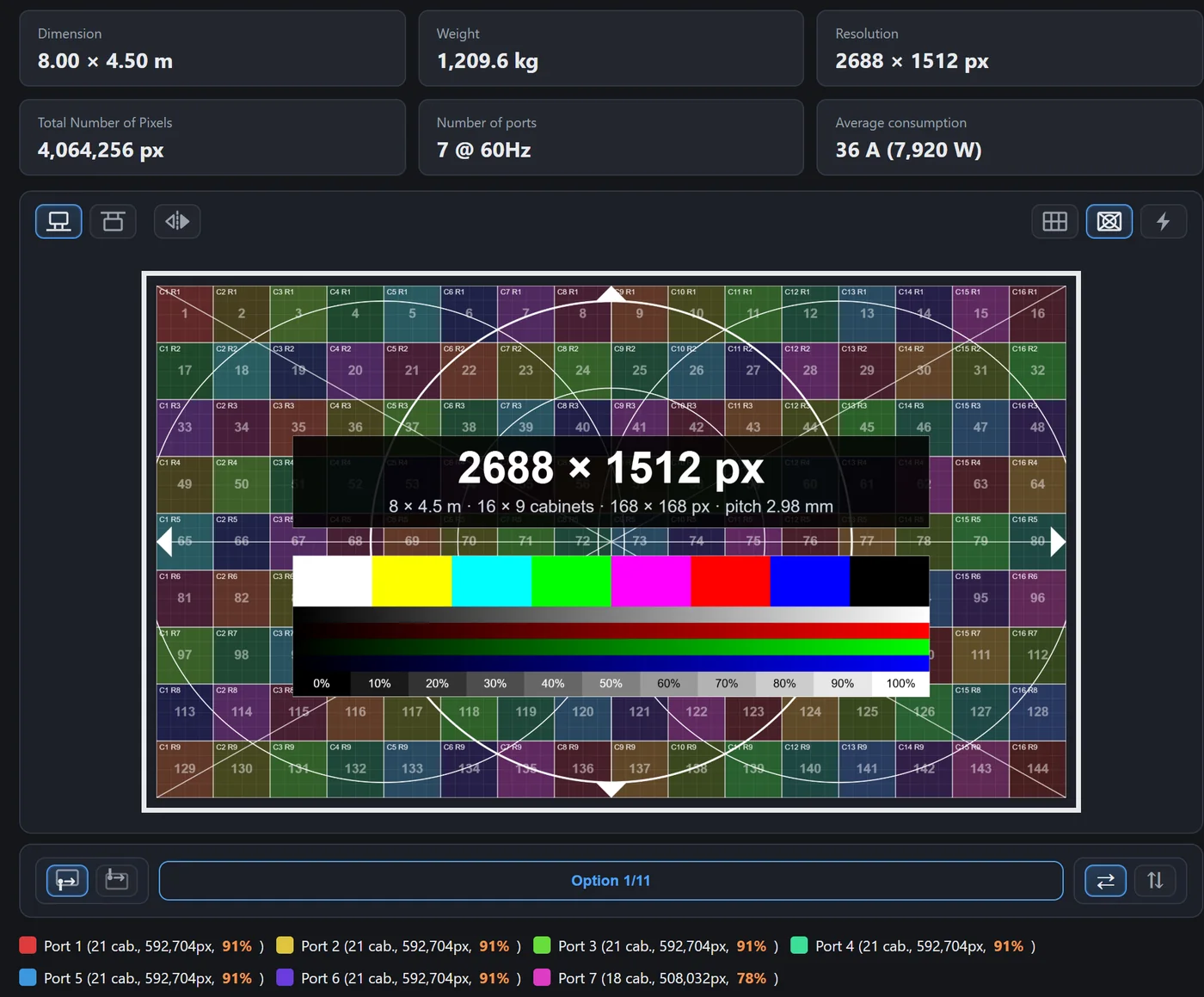
A test image at the exact screen resolution
A PNG ready to play on the screen: the cabinet grid, a circle and diagonals for geometry, colour bars and grey ramps.
- Pixel map for the video operator in three styles, or your own
- Resolume XML preset for the whole raster
Port capacity is calculated, not guessed
px per port = 936 000 000Hz × 24
| Refresh | Pixels per port | MX (COEX) |
|---|---|---|
| 60 Hz | 650 000 | 659 722 |
| 50 Hz | 780 000 | 791 666 |
| 30 Hz | 1 300 000 | 1 319 444 |
A 10 or 12-bit input halves the capacity. Headroom leaves a margin below the nominal value. A card that goes over a limit of the chosen processor (ports, pixels, resolution) turns red.
Knows every one of these
- MCTRL
- 300 · 500 · 600 · 660 · 660 Pro · 700 · R5 · 4K
- MSD
- 300 · 600
- VX
- VX4S · VX6s · VX16s · VX400 · VX600 · VX1000 · VX400 Pro · VX600 Pro · VX1000 Pro · VX2000 Pro
- NovaPro
- HD · UHD · UHD Jr
- MX (COEX)
- MX20 · MX30 · MX40 Pro
- V
- V760 · V960 · V1060 · V1260 · V2460
- Taurus
- TB1 · TB2 · TB30 · TB40 · TB50 · TB60
For each one: the number of RJ45 ports, the maximum pixel count and the maximum input width and height.
A PDF for the client, the technician and the printer
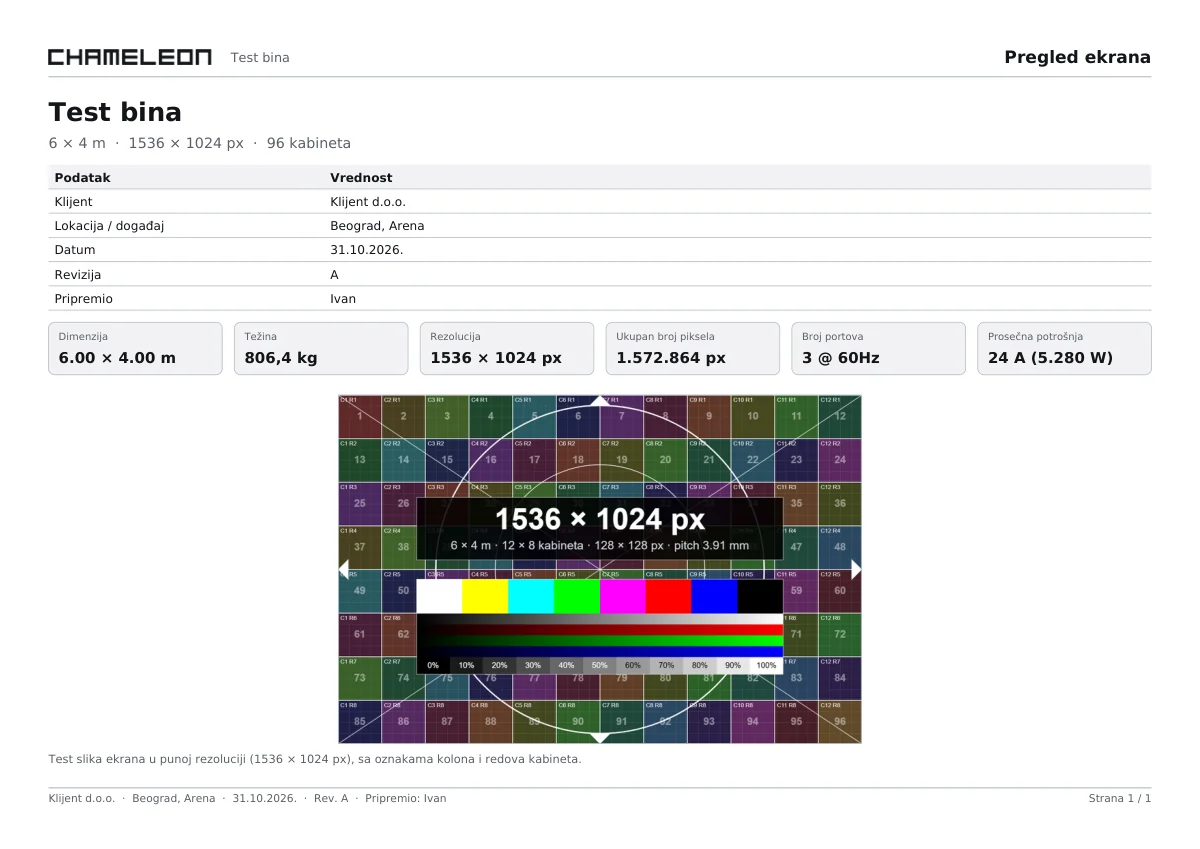
One project, three reports. Pick the pages and the audience, and the report carries your project name and details.
- Client
- Screen overview: size, resolution, weight, power draw.
- Technician
- Signal front and rear, backup, power, hanging, video and Resolume.
- Black & white A3
- For the printer on site, without the colour ink.
The samples are real exports from the tool (in Serbian).
100%
Every test file, without exception. Single and multiple screens, backup lines, splitting across units, offsets, different cabinets and blank positions: every file was loaded into NovaLCT 5.9.2 and saved again, and every cabinet stayed exactly where it belongs (card, port, place in the chain, X/Y). The .scr format was built from files NovaLCT itself writes.
Try it free. When you need the .scr, subscribe.
Demo
Free
No account, right in the browser
- The whole calculation: ports, diagram, power, hanging
- Pro mode: processors, backup, bit depth
- Screens up to 4.9 MP (e.g. 3840 × 1280 px)
- Up to 2 screens
- No exports, no saving projects
Subscription
$4.99 a year + VAT
One account for every Chameleon tool
- .scr for NovaLCT, including several screens in one file
- PDF, JPG, test image, pixel map, Resolume XML
- Save and load projects
- No size limit, up to 16 screens
- Plus: curved LED walls, Nivtec stages, stairs, ramps and the truss check
No internet on site? LED Configurator for Android works fully offline, with no account.

Questions
Does the .scr carry the redundancy too?
No, NovaLCT doesn't keep redundancy in the .scr file. So the tool makes a table of port pairs (primary → backup) that you enter in NovaLCT: Screen Configuration → Sending Card → Redundancy. The port numbers match the diagram and the .scr.
My cabinet isn't on the list.
Choose “Custom…”: enter the cabinet width and height in metres and the horizontal resolution, and the vertical one follows from the cabinet shape. Take the weight and draw from the datasheet and the tool remembers them.
What exactly doesn't work in the demo?
The calculation and every view work as in the full version. Exports (.scr, PDF, JPG, test image, pixel map, Resolume) and saving projects don't, a screen can be up to 4.9 MP, and Pro mode allows up to 2 screens.
Do I need to install anything?
No. The tool runs in the browser on a computer, tablet or phone. For working without internet there's the LED Configurator Android app.
What happens to my screen data?
The calculation runs in your browser. The screen parameters go to the server only when you create a .scr file, and only for that. The demo sends nothing.
How do I pay, and what's included?
The subscription is yearly, $4.99 + VAT, paid at apps.chameleon.rs. It covers every Chameleon tool, and every new tool is included at no extra cost.